Demonstration of Using Programs on HPCFS
Work on HPCFS consists of the following main areas:
With the NX client we access the system daily and from various computers.
We can use the KDE or Gnome desktop environment
Most often we use the Konsole, in which we type shell commands
Additional programs are selected with the modules environment
Programs are run on the nodes with the SLURM environment
Most of the time, however, is spent obtaining new results, which usually means
writing shell and SLURM scripts with which computations can easily be repeated
developing your own programs
processing and evaluating results
writing reports and papers and drawing sketches
Let us demonstrate these areas with short examples!
After installing the NX client, enter the assigned username and password in the login window and connect to the master node.
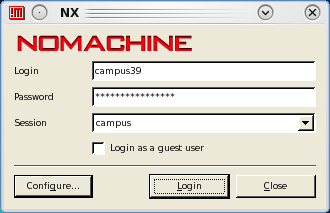
On connection, the NX client displays the KDE graphical environment.
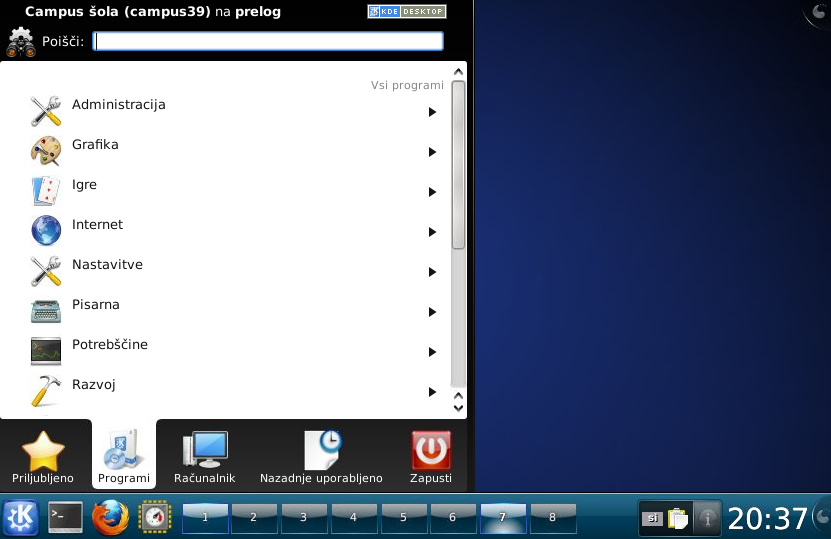
On the bottom bar is the classic button for launching programs, which opens a menu of installed graphical programs. Here you will find various programs that can be used for ordinary “office” work.
Next comes the most important icon, for opening the Konsole. It is marked with the >_ sign, meaning it is intended for typing commands. It is precisely the use of commands that we will show in this demonstration of work on HPCFS. Besides the icon for launching the browser there is also an icon for launching CMU, with which we view the current load on the system. Since CMU is a Java program running on the master node, it is recommended to run it only when absolutely necessary, as otherwise it can needlessly load the master node with status display and thus slow it down. It is likewise recommended not to keep too many web pages with animations open in the browser.
Let us open the Konsole and see which programs are available
$ module avail
A long list of additionally available programs and libraries is printed. Let us see how to learn about an individual program. The list also includes ANSYS. Let us see how it is described, how to load it and briefly run it interactively on an arbitrary node.
 $ module help ansys

----------- Module Specific Help for 'ansys/14.0' -----------------

Simulation products, which are predominantly based on implementations
of the finite element method and computational fluid dynamics including:
    * Multiphysics
    * Structural mechanics
    * Fluid Dynamics
    * Explicit Dynamics
    * Electromagnetics
    * Simulation Process & Data Management
    * Academic
    * High-Performance Computing
    * Geometry Interfaces and more
$ module load ansys
  Loading ansys/14.0
$ srun --partition=rome --nodes=1 --exclusive --x11 --pty runwb2
Job <60231> is submitted to default queue .
<>
<>
GC Warning: Limiting number of mark threads
GC Warning: Limiting number of mark threads
$
Running this group of programs requires a separate course or at least a short overview of the modules.
Instead, let us make a smaller example on which we will show the basic issues and tips for solving problems. To begin, create a subdirectory with the mkdir command and move into it.
[campus39@prelog ~]$ mkdir serialpi
[campus39@prelog ~]$ cd serialpi
[campus39@prelog serialpi]$ ls
Let us use inkscape to draw the problem, running it on an arbitrary node
[campus39@prelog serialpi]$ module load inkscape
  Loading inkscape/0.48.2
[campus39@prelog serialpi]$ srun --x11 --pty inkscape
...
[campus39@prelog serialpi]$ exit
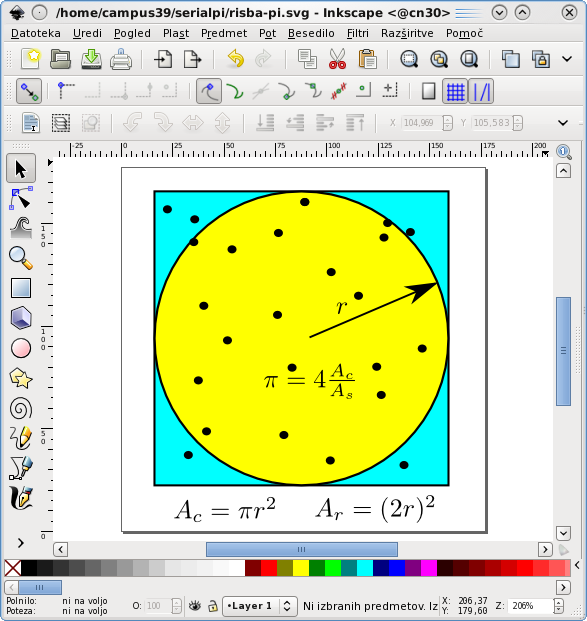
The problem shown aims to compute the number Pi by randomly throwing points. Four times the ratio of the points inside the circle to all points is the number Pi.
Let us write a short program in Python that shows how this can be quickly checked in the Python programming language, so we load it as a module. We use the emacs editor to write the program.
 [campus39@prelog serialpi]$ module load python
  Loading python/2.7.3
[campus39@prelog serialpi]$ emacs serialpi.py &
Type in the program
import random, math
vseh=100000
v_krogu=0
for i in range(vseh):
    x = random.uniform(-1, 1)
    y = random.uniform(-1, 1)
    r = math.sqrt(x*x+y*y)
    if r < 1.0:
        v_krogu += 1
print 'Pi =', 4.0*v_krogu/vseh
Save it and run it in the foreground on a single processor with the command
 [campus39@prelog serialpi]$ srun python serialpi.py
Pi = 3.1528
For long-running computational programs and when the system is busy, it can happen that there are no free compute nodes, and the srun command would wait for released compute resources much longer than the user is willing to wait. In such cases we prefer to use commands that prepare the command for execution in the background. These are the so-called batch commands. The same program would be run in the background with
 [campus39@prelog serialpi]$ sbatch --wrap="python serialpi.py"
Submitted batch job 60472
[campus39@prelog serialpi]$
Since the command prompt is available immediately, we can check what is happening with our programs with the command
 [campus39@prelog serialpi]$ squeue -u $USER
             JOBID PARTITION     NAME     USER ST       TIME  NODES NODELIST(REASON)
The result is not printed on the screen but is captured in the file slurm-JOBID.out in the directory from which the job was submitted. When the job no longer appears in the list, we read the result with
[campus39@prelog serialpi]$ cat slurm-60472.out
Pi = 3.1528
If the system were busy, it would say that the program is waiting for free capacity (PENDING), which can be checked with the overview command. In the example below, you can see that some processors on cn56 are still free.
 [campus39@prelog serialpi]$ sinfo -N
NODELIST   NODES PARTITION STATE
cn01           1     rome* alloc
cn02           1     rome* alloc
cn03           1     rome* alloc
...
...
cn54           1     rome* alloc
cn55           1     rome* alloc
cn56           1     rome* mix
cn57           1     rome* alloc
cn58           1     rome* alloc
cn59           1     rome* alloc
cn60           1     rome* alloc
cn61           1     rome* alloc
cn62           1     rome* alloc
cn63           1     rome* alloc
cn64           1     rome* alloc
The Pi computation example shows the following properties:
A simple but computationally demanding program
Minimal communication and disk usage, since the result is printed at the end.
For higher accuracy, is it only necessary to increase the number of throws?
The distance test r can be written without math.sqrt()!
If it turns out that the time grows exponentially while accuracy cannot be guaranteed, we decide to change the programming language, since interpreters such as Python are slow. If that is not easy, we try parallelisation, so that several processors compute simultaneously and the result is then combined into a whole.
For further work, we have the option of simple parallelisation in C and Fortran with OpenMP, or creating a parallel program in MPI mode.
Prikaz uporabe programov na HPCFS
Delo na HPCFS je sestavljeno iz nasledjih poglavitnih področij:
Z NX clientom dostopamo do sestava vsakodnevno in z različnih računalnikov.
Uporabljamo lahko KDE ali Gnome okensko okolje
Najpogosteje uporabljamo Konzolo v katero tipkamo školjčne ukaze
Dodatne programe izbiramo z okoljem modules
Programe poganjamo na vozliščih z okoljem SLURM
Največ časa pa se prebije pri pridobivanju novih rezultatov, kar običajno pomeni
pisanje školjčnih in SLURM skript s katerimi lahko enostavno ponovimo izračune
razvoj lastnih programov
obdelava in ocenjevanje rezultatov
pisanje poročil, člankov in risanje skic
Prikažimo našteta prodročja na kratkih primerih!
Po namestitvi NX clienta vpišemo v prijavno okno dodeljeno uporabniško ime in geslo in se povežemo z nadzornim vozliščem.
NX klient ob povezavi omogoči prikaz grafičnega okolje KDE.
Na spodnji vrstici je klasičen gumb za zagon programov, ki odpre meni z nameščenimi grafičnimi programi. Tu se najdejo različni programi, ki jih lahko uporabljamo za običajno “pisarniško” delo.
Sledi najpomembnejša ikona za odpiranje Konzole. Označena je z znakom >_, kar pomeni, da je namenjena tipkanju ukazov. Prav uporabo ukazov bomo kazali v tem prikazu dela na HPCFS. Poleg ikone za zagon brskalnika je podana še ikona za zagon programa CMU s katerim gledamo trenutno obremenitev sestava. Ker je CMU Java program, ki se poganja na nadzornem vozlišču se priporoča, da ga poganjamo samo, kadar je le to nujno potrebno saj v nasprotnem primeru lahko po nepotrebnem obremenjuje nadzorno vozlišče s prikazom stanja in ga tako upočasnjuje. Prav tako se priporoča, da v brskalniku nimamo odprtih preveč spletnih strani z animacijami.
Odprimo Konzolo in poglejmo kateri programi so na voljo
$ module avail
Izpiše se dolg spisek programov in knjižnic, ki so dodatno na voljo. Poglejmo kako se lahko seznanimo s posameznim programom. Na spisku je tudi program ANSYS. Poglejmo kako je opisan, kako ga naložimo in na kratko interaktivno poženemo na poljubnem vozlišču.
 $ module help ansys

----------- Module Specific Help for 'ansys/14.0' -----------------

Simulation products, which are predominantly based on implementations
of the finite element method and computational fluid dynamics including:
    * Multiphysics
    * Structural mechanics
    * Fluid Dynamics
    * Explicit Dynamics
    * Electromagnetics
    * Simulation Process & Data Management
    * Academic
    * High-Performance Computing
    * Geometry Interfaces and more
$ module load ansys
  Loading ansys/14.0
$ srun --partition=rome --nodes=1 --exclusive --x11 --pty runwb2
Job <60231> is submitted to default queue .
<>
<>
GC Warning: Limiting number of mark threads
GC Warning: Limiting number of mark threads
$
Za poganjanje te skupine programov je potreben ločen tečaj ali vsaj kratek pregled sklopov.
Izdelajmo raje manjši primer na katerem bomo pokazali osnovno problematiko in napotke pri reševanju problemov. Za začetek najprej naredimo podimenik z ukazom mkdir in se premaknemo vanj.
[campus39@prelog ~]$ mkdir serialpi
[campus39@prelog ~]$ cd serialpi
[campus39@prelog serialpi]$ ls
Uporabimo inkscape in narišimo problem s tem, da ga poženemo na poljubnem vozlišču
[campus39@prelog serialpi]$ module load inkscape
  Loading inkscape/0.48.2
[campus39@prelog serialpi]$ srun --x11 --pty inkscape
...
[campus39@prelog serialpi]$ exit
Problem, ki je prikazan ima za cilj izračunati število Pi z naključnim metanjem točk. Štirikratnik razmerja med točkami v krogu in vseh točk je število Pi.
Napišimo kratek program v Pythonu, ki pokaže, kako lahko to na hitro preverimo v programskem jeziku Python zato ga naložimo kot modul. Uporabimo urejevalnik emacs za pisanje programa.
 [campus39@prelog serialpi]$ module load python
  Loading python/2.7.3
[campus39@prelog serialpi]$ emacs serialpi.py &
Program pretipkamo
import random, math
vseh=100000
v_krogu=0
for i in range(vseh):
    x = random.uniform(-1, 1)
    y = random.uniform(-1, 1)
    r = math.sqrt(x*x+y*y)
    if r < 1.0:
        v_krogu += 1
print 'Pi =', 4.0*v_krogu/vseh
Shranimo in poženemo kar v ospredju na enem samem procesorju z ukazom
 [campus39@prelog serialpi]$ srun python serialpi.py
Pi = 3.1528
Za dolgo trajajoče računske programe in v primeru zasedenosti sestava se lahko zgodi, da ni prostih računskih vozlišč in bi tako ukaz srun čakal na sproščene računske vire precej več časa, kot je uporabnik pripravljen čakati. V takih primerih se raje poslužujemo ukazov, ki pripravijo ukaz za izvajanje v ozadju. To so tako imenovani batch ukazi. Taisti program bi pognali v ozadju z
 [campus39@prelog serialpi]$ sbatch --wrap="python serialpi.py"
Submitted batch job 60472
[campus39@prelog serialpi]$
Ker dobimo ukazno vrstivo takoj na voljo lahko preverimo kaj se dogaja je našim programom z ukazom
 [campus39@prelog serialpi]$ squeue -u $USER
             JOBID PARTITION     NAME     USER ST       TIME  NODES NODELIST(REASON)
Rezultat se ne izpiše na zaslon ampak se ta prestreže v datoteko slurm-JOBID.out v imeniku, iz katerega smo posel poslali. Ko posla ni več na seznamu, rezultat preberemo z
[campus39@prelog serialpi]$ cat slurm-60472.out
Pi = 3.1528
V primeru zasedenosti bi pisalo, da program čaka na proste kapacitete (PENDING) , ki jih lahko preverimo z ukazom za pregled. V spodnjem primeru je videti, da je nekaj procesorjev na cn56 še prostih.
 [campus39@prelog serialpi]$ sinfo -N
NODELIST   NODES PARTITION STATE
cn01           1     rome* alloc
cn02           1     rome* alloc
cn03           1     rome* alloc
...
...
cn54           1     rome* alloc
cn55           1     rome* alloc
cn56           1     rome* mix
cn57           1     rome* alloc
cn58           1     rome* alloc
cn59           1     rome* alloc
cn60           1     rome* alloc
cn61           1     rome* alloc
cn62           1     rome* alloc
cn63           1     rome* alloc
cn64           1     rome* alloc
Primer izračuna Pi kaže naslednje lastnosti:
Enostaven vendar računsko zahteven program
Minimalna komunikacija in uporaba diska saj se rezultat izpiše na koncu.
Za večjo natančnost je potrebno le povečati število metov?
Test razdalje r lahko napišemo brez math.sqrt()!
Če se izkaže, da čas eksponentno narašča natančnost pa ne moremo zagotoviti se odločamo za spremembo programskega jezika saj so interpterji, kot je Python počasni. V primeru, da to ni enostavno pa poskusimo s paralelizacijo tako, da hkrati več procesorjev računa, nato pa rezultat združimo v celoto.
Za nadaljnje delo imamo možnost enostavne paralelizacije v Cju in Fortranu z OpenMP ali pa izdelava paralelnega programa v načinu MPI.