Inkscape
It is an open-source tool for drawing vector graphics based on the Scalable Vector Graphics (SVG) format. Commercial programs such as Illustrator, Coreldraw, … have similar features.
It is also suitable for scientific work when drawing and enhancing graphs. The basic building blocks of all images are:
raster graphics - a grid of points. Advantage: with sufficient resolution it can represent very demanding images very accurately. Disadvantage: it uses a lot of space and is impossible to edit by hand.
vector graphics - the basic building blocks are polygons, lines and text.
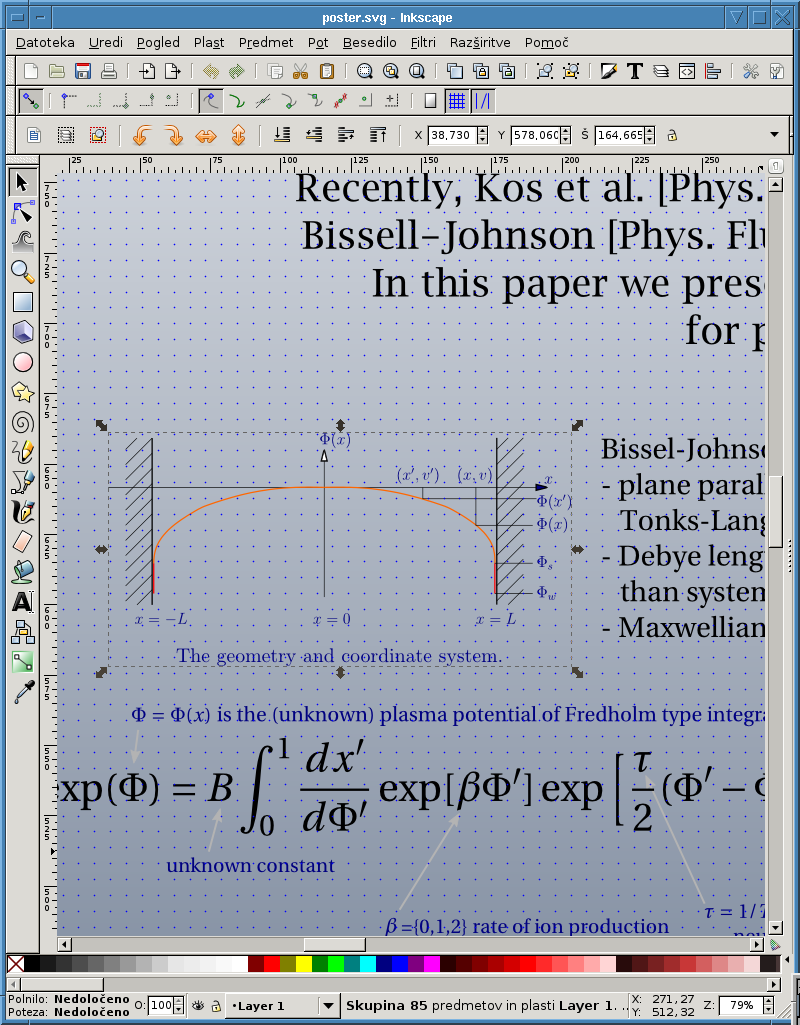
Paths are the lowest-level building blocks.
They consist of lines and nodes.
Tangents can be set at each node.
Each line can be closed and filled
Using SVG directly in LaTeX
When using LaTeX, it is convenient to see drawn sketches immediately without conversion. An example using auctex in Emacs. Add the following command to the LaTeX preamble
 % Avtomatsko kreiranje PDF in EPS iz Inkscape SVG skic
% Slike SVG so shranjene v podimeniku fig/ avtomatsko narejene pa v gen/
\graphicspath{{gen/}{fig/}}

\newcommand{\includegraphicsvg}[2][]{%
  \ifnum\pdfstrcmp{\pdffilemoddate{fig/#2.svg}}%
  {\pdffilemoddate{gen/#2.pdf}}>0%
  {\immediate\write18{inkscape -z -D --file=fig/#2.svg %
      --export-pdf=gen/#2.pdf --export-eps=gen/#2.eps %
      --export-area-drawing}}\fi%
  \includegraphics[#1]{#2}%
}
Compilation requires an extended LaTeX command; the simplest way is to add it at the end of the .tex document as local Emacs variables:
 %%% Local Variables:
%%% mode: latex
%%% TeX-master: t
%%% TeX-PDF-mode: t
%%% TeX-parse-self: t
%%% TeX-auto-save: t
%%% LaTeX-command: "latex --enable-write18"
%%% End:
Including images is then the same as with the includegraphics command
 \begin{figure}
  \centering
  \includegraphicsvg[width=0.5\linewidth]{risba}
  \caption{Opis risbe}
  \label{fig:risba}
\end{figure}
For even nicer images, Inkscape 0.48+ can use the –export-latex command and a two-part image input, where the text including mathematical formulas is rendered by LaTeX, while PDF or EPS serves as the background. Unfortunately, most scientific journals do not support this kind of image, since complete images must be supplied. Fortunately, equations can be included in Inkscape using the Extensions-Render-LaTeX Formula… plugin. The equation is converted into curves, as if it had been drawn by hand. This is difficult to correct, since corrections have to be made by redrawing.
Most useful keys when creating drawings
The most frequently used keys are:
F1 or space to select an object
F2 to edit nodes
Sketching requires a lot of navigation, so practically all keys with preset zoom levels are useful:
F3 to select the zoom window
1 to zoom to natural size. If Inkscape does not display things in the exact proportion as printed on paper, something is wrong with your display settings!
2 Twice as large.
3 Zoom to the size of the currently selected element.
4 Zoom to the whole drawing.
5 Show the whole page.
Ctrl-E zoom to page width
Middle mouse button with or without shift zooms the view in or out
Entering Greek letters:
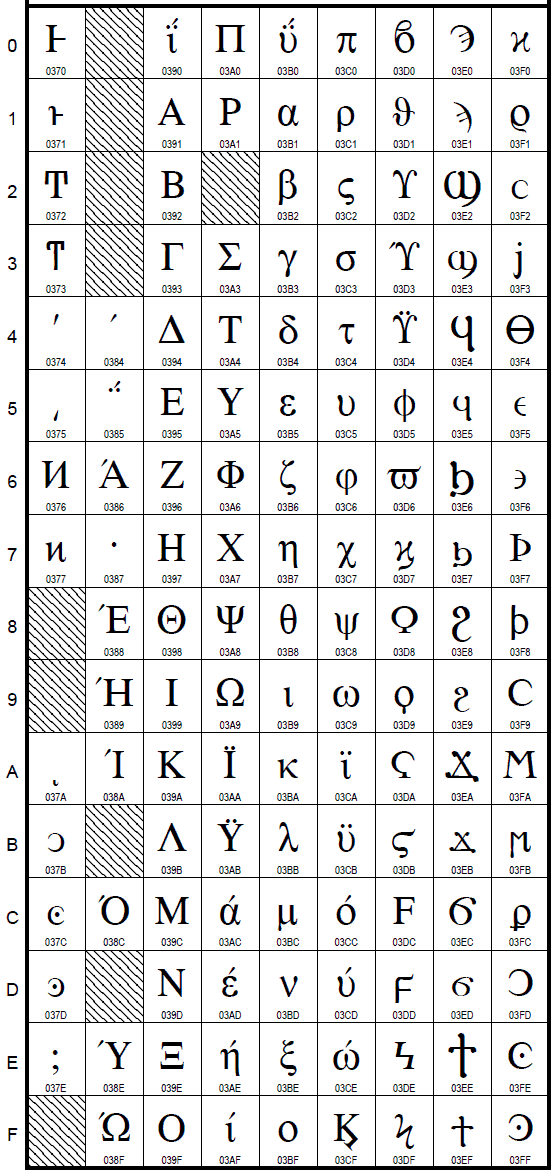 We often want to insert characters from the Greek alphabet directly in the text. This can be done if we know the Unicode number of the desired letter. For example, for the Greek letter Phi type Ctrl-U and 03A6 and then Enter. Other letters are shown in the image.
Entering LaTeX text
In addition to basic equation writing with EQTeXSVG,
Inkscape now, with the Tex Text add-on, also allows direct input of arbitrary LaTeX text with the possibility of re-editing, which is especially convenient for posters or more complex drawings. Since PDF import into Inkscape is poor at converting text, the pdf2svg translator is also installed.
In addition to the system version 0.47, the newer version 0.48.2 is now available in “module avail” with
 module load inkscape
 srun --partition=rome --ntasks=1 --x11 --pty inkscape
Inkscape
Je prostokodno orodje za risanje vektorske grafike na osnovi formata Standardne Vektorske Grafike (SVG). Podobne lastnosti imajo komercialni programi kot je Ilustrator, Coreldraw, …
Primerno je tudi za znanstveno delo pri risanju in dopolnjevanju grafov. Osnovna gradnika vseh slik sta:
rastrska grafika - mreža točk. Prednost: Z zadovoljivo ločljivostjo lahko predstavi zelo natančno zahtevne slike. Slabost: porabi veliko prostora in jo je nemogoče ročno popravljati.
vektorska grafika - osnovni gradniki so poligoni, črte in besedilo.
Sledi (paths) so najnižji gradniki.
Sestavljeni so iz črt in vozlišč.
Tangente lahko nastavljne v vsakem vozlišču.
Vsaka črta je lahko zaprta in zapolnjena
Neposredna uporaba SVG v LaTeX-u
Pri uporabi LaTeX je ugodno, če lahko narisane skice takoj vidimo brez pretvarjanja. Primer z uporabo auctex v emacsu. V LaTeX preamble dodamo ukaz
 % Avtomatsko kreiranje PDF in EPS iz Inkscape SVG skic
% Slike SVG so shranjene v podimeniku fig/ avtomatsko narejene pa v gen/
\graphicspath{{gen/}{fig/}}

\newcommand{\includegraphicsvg}[2][]{%
  \ifnum\pdfstrcmp{\pdffilemoddate{fig/#2.svg}}%
  {\pdffilemoddate{gen/#2.pdf}}>0%
  {\immediate\write18{inkscape -z -D --file=fig/#2.svg %
      --export-pdf=gen/#2.pdf --export-eps=gen/#2.eps %
      --export-area-drawing}}\fi%
  \includegraphics[#1]{#2}%
}
Prevajanje je potrebno z razširjenim LaTeX ukazom, kar je najenostavneje, da dodamo na koncu .tex dokumenta kot lokalne Emacs spremenljivke:
 %%% Local Variables:
%%% mode: latex
%%% TeX-master: t
%%% TeX-PDF-mode: t
%%% TeX-parse-self: t
%%% TeX-auto-save: t
%%% LaTeX-command: "latex --enable-write18"
%%% End:
Vključevanje slik je potem enako kot pri ukazu includegraphics
 \begin{figure}
  \centering
  \includegraphicsvg[width=0.5\linewidth]{risba}
  \caption{Opis risbe}
  \label{fig:risba}
\end{figure}
Za še lepše slike je mogoče v verziji Inkscape 0.48+ uporabiti ukaz –export-latex ter uporabiti dvodelen vnos slike s tem, da besedilo vključno z matematičnimi formulami upodablja LaTeX, PDF ali EPS pa je za podlago. Tak način slik žal večina znanstvenih revij ne podpira, saj je potrebno v priložiti kompletne slike. K sreči je možno v Inkscape vključevati enačbe z uporabo vsadka Razširitve-Upodobi-Formula LaTeX… Pri tem se enačba pretvori v krivulje, kot bi jo risali ročno. Kar je težavno za popravljanje, saj je potrebno popravke narediti s ponovnim risanjem.
Najbolj uporabne tipke pri izdelavi risb
Najbolj uporabljani tipki sta:
F1 ali space za izbor predmeta
F2 za urejanje vozlišč
Pri skiciranju je potrebno veliko navigacije, zato so praktično vse tipke s prednastavljenimi povečavami uporabne:
F3 za izbor okna povečave
1 za povečavo v naravni velikosti. Če Inkscape ne prikaže v točnem razmerju kot je stiskano na papir, potem je nekaj narobe z vašo nastavitvijo zaslona!
2 Dva krat večje.
3 Povečaj na velikost trenutno izbranega elementa.
4 Povečaj na celotno risbo.
5 Pokaži celotno stran.
Ctrl-E povečaj na širino strani
Srednja tipka miške z ali brez shift približa ali oddalji pogled
Vnos grških črk:
Pogosto želimo kar v samem besedilu vstaviti znake iz grške abecede. Le to lahko naredimo, če poznamo unicode število za željeno črko. Na primer za grško črko Phi odtipkamo Ctrl-U in 03A6 ter nato Enter. Ostale črke so prikazane na sliki.
Vnos LaTeX besedila
Inkscape poleg osnovnega pisanja enačb z EQTeXSVG
sedaj z dodatkom Tex Text omogoča še neposreden vnos poljubnega LaTeX besedila z možnostjo ponovnega urejanja, kar je posebno ugodno za kakšne posterje ali zahtevnejše risbe. Ker je uvoz PDF v Inkscape slab pri pretvorbi besedila, je nameščen še translator pdf2svg.
Poleg sistemske verzije 0.47 je sedaj na voljo še novejša inačica 0.48.2 v “module avail” z
 module load inkscape
 srun --partition=rome --ntasks=1 --x11 --pty inkscape