Introduction to Linux
Overview of Linux commands
Introduction
Working with the MS Windows operating system is easier, since MS Windows is more widespread.
For most people it is easier to use, since in principle little prior knowledge is needed and communication between the user and the operating system takes place through interaction between the mouse and icons on the screen.
Linux, on the other hand, is considered an operating system in which communication between the user and the operating system is preferably done through command shells (terminals) by typing commands.
When executing commands, we communicate with the system through a command shell (Shell).
Recently, however, various graphical user interfaces have been developed for commercial Linux distributions that look similar to the MS Windows environment but run on Linux platforms.
Command terminal
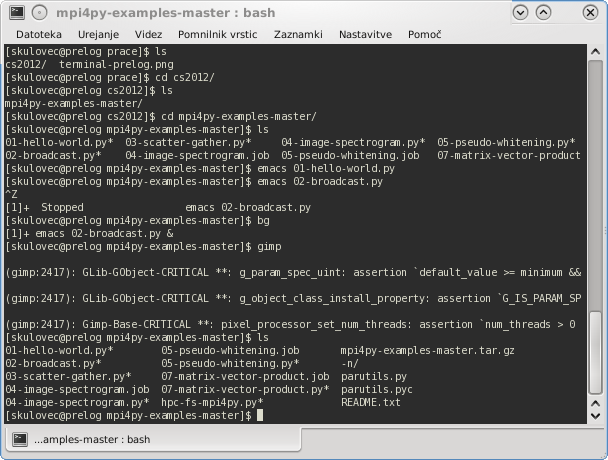
Just as there are different Linux OS distributions, there are also different terminals. Shown above is the CentOS terminal on the ULFME supercomputer.
Basic Linux commands
Logging in/out of the system
Shutting down the system
Working with users
Working with directories and files
Archiving tools
Help commands
Logging in/out of the system
How do we log out of the system?
At the command line we type the command
** /home/larry$ exit**
to log out.
Shutting down the system
command: shutdown [options] [time] [message]
Options:
-h halt the system
-n halt the system quickly
-r reboot the system
-f reboot the system quickly
-c cancel a system shutdown
Time:
Time is given as hh:mm:ss, or write “now” for immediately
Message:
A message sent to all users before shutdown
halt - prepares the computer for power-off
reboot - prepares the computer for restart
poweroff - prepares the computer for power-off
Working with users
passwd - changes the user’s password
adduser - adds or updates information about a new user
**userdel ** - deletes a user and their files
id - prints information about a user
adduser [options] user
Options:
-d directory - sets the user’s home directory
-e date - the day the user will no longer be active (MM/DD/YY)
-g group - additional groups the user belongs to
-u uid - the user’s ID number
userdel [options] user
Options:
-r the user’s home directory will be deleted
id user
Working with directories and files
Directory tree:
bin
dev
etc
home -> simon, leon
lib
proc
tmp
usr: X11R6, emacs, …
var
Comparison of some DOS and LINUX commands:
DOS commands: ATTRIB, COPY, DEL, MOVE, REN, TYPE
LINUX commands: chmod, cp, rm, mv, mv, (more, less, cat)
Overview of LINUX commands:
ls [options] directory - lists the contents of a directory
OPTIONS:
-a or -all lists all files and directories, including hidden ones
–color lists files and directories in different colours
cd directory - changes the working directory
pwd - prints the current directory
**cp [options] source destination ** - copies files and directories
OPTIONS:
-r also copies directories
-f or –force overwrites existing destinations without warning
-i or –interactive asks before overwriting existing files
-v prints additional information during the operation
mv [options] source destination - moves or renames files
OPTIONS:
-r also moves directories
-f or –force overwrites existing destinations without warning
-i or –interactive asks before overwriting existing files
-v prints additional information during the operation
**rm [options] file_name ** - deletes files or directories
OPTIONS:
-r also deletes directories
-f or –force removes existing files or directories without warning
-i or –interactive asks before removing files or a directory
-v prints additional information during the operation
mkdir directory_name - creates a directory
rmdir directory_name - deletes an empty directory
whereis [options] file- locates the command binary, documentation and source code
OPTIONS:
-b searches only for executables
-m searches only for documentation
-s searches only for source code
-u searches for unusual entries
which program_name - shows the full path of a command
dd medium file - converts and copies a file
file [options] file - determines the file type
OPTIONS:
-z looks inside compressed files
-b does not print file names, only their type
find path [expression] - searches for files in directories and subdirectories
EXPRESSION:
-name specifies the file name
sort [options] file - sorts lines in text files
OPTIONS:
-o file specifies the output file
df - reports disk usage
du [options] file - estimates disk space used
OPTIONS:
-c shows the total
-h converts to a human-readable format
-k shows in kilobytes
-m shows in megabytes
free - shows the amount of free and used memory in the system
Archiving tools
tar [options] archive files - file archiving tool
OPTIONS:
-czvf creates a new compressed archive containing the given files
-xzvf extracts a compressed archive into the specified directory
-cvf creates a new archive containing the given files
-xvf extracts an archive into the specified directory
zip archive files - compresses files
unzip [options] archive - extracts compressed files
OPTIONS:
-d specifies the extraction directory
gzip file - compresses a file
gunzip file - decompresses a compressed file
bzip2 file - compresses a file
bunzip2 file - decompresses a compressed file
Help commands
man command - shows help for a given command
info - shows information about a command
ping - checks the response time of a host. ping sends a test data packet and measures the time it takes for the host to respond
ifconfig - can be used to configure network interfaces and to check a PPP connection.
File editors
There are several kinds of editors: emacs, gedit, vi… We will use the emacs file editor. In your command shell, type emacs at the prompt and press Enter.
The emacs file editor opens, as shown in the figure below.
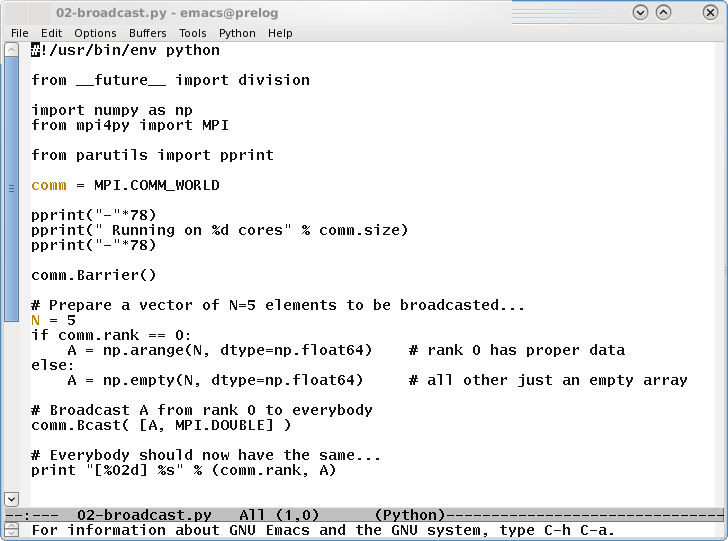
All of the most frequently used functions have predefined key chords. Some are listed below:
akord       funkcija           opis
-------------------------------------------------------------------
C-x C-s     save-buffer        shrani trenutni vmesnik na disk
C-x u       undo               razveljavi zadnji ukaz
C-x C-f     find-file          odpri datoteko na disku
C-s         isearch-forward    poišči niz znakov v smeri naprej
C-r         isearch-backward   poišči niz znakov v smeri nazaj
            replace-string     poišči niz znakov in ga zamenjaj
            replace-regexp     poišči regularni izraz in ga zamenjaj
C-h t       help-with-tutorial poženi učenje Emacsa s prvim berilom
C-h f       describe-function  izpiši opis funkcije
C-h v       describe-variable  izpiši opis spremenljivke
C-h x       describe-key       izpiši pomen akorda
C-h a       apropos            poišči dokumentacijo z regularnim izrazom
C-h F       view-emacs-FAQ     prikaži odgovore na pogosta vprašanja o Emacsu
C-h i       info               izpiši dokumentacijo o Emacsu
C-x r m     bookmark-set       označi trenutno mesto z zaznamkom
C-x r b     bookmark-jump      skoči na zaznamek
-------------------------------------------------------------------
print "hello, world"
Uvod v Linux
Pregled Linux ukazov
Uvod
Delo z operaciskim sistemom MS Windows je enostavneje, saj je MS Windows bolj razširjen.
Za večino je enostavnejši za uporabo, saj načeloma ne potrebujemo veliko predznanja in komunikacija med uporabnikom in operacijskim sistemom poteka preko interakcije med miško in ikonami na zaslonu.
Linux pa velja za operacijski sistem pri katerem se preferira komunikacijo med uporabnikom in operacijskim sistemom preko ukaznih lupin (terminalov) z vpisovanjem ukazov.
Pri izvajanju ukazov komuniciramo s sistemom skozi ukazno lupino (angl. Shell)
Čeprav se v zadnjem času za komercialne pakete Linux okolja razvijajo različni grafični uporabniški vmesniki, ki so vizualizacijsko podobni okolju MS Widnows, vendar delujejo na Linux platformah.
Ukazni terminal
Tako kot različne različice Linux OS obstajajo tudi različni terminali. Zgoraj je prikazan terminal CentOS na superračunalniku ULFME.
Predstavitev osnovnih Linux ukazov
Prijava/odjava v sistem
Zaustavitev sistema
Delo z uporabniki
Delo z imeniki in datotekami
Orodja za arhiviranje
Ukazi za pomoč
Prijava/odjava v sistem
Kako se odjavimo iz sistema?
V ukazi vrstici vpišemo ukaz
** /home/larry$ exit**
za odjavo.
Zaustavitev sistema
ukaz: shutdown [opcije] [čas] [sporočilo]
Opcije:
-h ustavi sistem
-n hitro ustavi sistem
-r ponovno zaženi sistem
-f hitro ponovno zaženi sistem
-c prekliči ustavitev sistema
Čas:
Čas podamo v uu:mm:ss ali napišemo “now” za takoj
Sporočilo:
Sporočilo, ki je poslano vsem uporabnikom pred izklopom
halt - pripravi računalnik na izklop
reboot - pripravi računalnik
poweroff - pripravi računalnik na izklop
Delo z uporabnik
passwd - spremeni geslo uporabnika
adduser - doda ali obnovi informacije o novem uporabniku
**userdel ** - izbriše uporabnika in njegove datoteke
id - izpiše podatke o uporabnike
adduser [opcije] uporabnik
Opcije:
-d imenik - določimo imenik za uporabnika
-e datum - dan, ko uporabnik ne bo več aktiven (MM/DD/LL)
-g skupina - dodatne skupine v katere spada uporabnik
-u uid - uporabniška številja uporabnika
userdel [opcije] uporabnik
Opcije:
-r uporabnikov imenik bo izbrisan
id uporabnik
Delo u imeniki in datotekami
Drevo imenikov:
bin
dev
etc
home -> simon, leon
lib
proc
tmp
usr: X11R6, emacs, …
var
Primerjava med nekaterimi DOS in LINUX ukazi:
DOS ukazi: ATTRIB, COPY, DEL, MOVE, REN, TYPE
LINUx ukazi: chmod, cp, rm, mv, mv, (more, less, cat)
Pregled LINUX ukazov:
ls [opcije] imenik - izpiše vsebino imenika
OPCIJE:
-a ali -all izpiše vse datoteke in imenike tudi skrite
–color izpiše datoteke in imenike v različnih barvah
cd imenik - spremeni delovni imenik
pwd - izpiše trenutni imenik
**cp [opcije] izvor cilj ** - kopiranje datotek in imenikov
OPCIJE:
-r prekopira tudi imenike
-f ali –force prepiše obstoječe cilje, brez opozorila
-i ali –interactive vpraša preden prepiše obstoječe datoteke
-v izpiše dodatne informacije med postopkom
mv [opcije] izvor cilj - premakne ali preimenuje datoteke
OPCIJE:
-r premakne tudi imenike
-f ali –force prepiše obstoječe cilje, brez opozorila
-i ali –interactive vpraša preden prepiše obstoječe datoteke
-v izpiše dodatne informacije med postopkom
**rm [opcije] ime_datoteke ** - izbriše datoteke ali imenike
OPCIJE:
-r izbriše tudi imenike
-f ali –force prepiše obstoječe datoteke ali imenike , brez opozorila
-i ali –interactive vpraša preden odstrani datoteke ali imenik
-v izpiše dodatne informacije med postopkom
mkdir ime_imenika - naredi imenik
rmdir ime_imenika - izbriše prazen imenik
whereis [opcije] datoteka- poišče mesto, kjer se nahaja določen ukaz, dokumentacija in izvorna koda
OPCIJE:
-b poišče le izvršne datoteke
-m poišče le dokumentacijo
-s poišče le izvorno kodo
-u poišče nenavadne vnose
which ime_programa - prikaže polno pot ukaza
dd medij datoteka - konvertira in kopira datoteko
file [opcije] datoteka - ugotovi vrsto datoteke
OPCIJE:
-z pogleda v kompresirane datoteke
-b ne izpiše imena datotek, le njihovo vrsto
find pot [izraz] - išče datoteke v imenikih in podimenikih
IZRAZ:
-name podamo ime datoteke
sort [opcije] datoteka - uredi vrstice v tekstovnih datotekah
OPCIJE:
-o datoteka navedemo izhodno datoteko
df - izpiše stanje o uporabi diskov
du [opcije] datoteka - oceni porabljeno mesto na disku
OPCIJE:
-c prikaže vsoto
-h pretvori v drug format
-k prikaže v kilobytes
-m prikaže v megabytes
free - prikaže količino prostega in porabljenega spomina v sistemu
Orodja za arhiviranje
tar [opcije] arhiv datoteke - orodje za arhiviranje datotek
OPCIJE:
-czvf kreira nov kompresiran arhiv, ki vsebuje navedene datoteke
-xzvf razširi kompresiran arhiv v imenik, ki ga določimo
-cvf kreira nov arhiv, ki vsebuje navedene datoteke
-xvf razširi arhiv v imenik, ki ga določimo
zip arhiv datoteke - stisne datoteke
unzip [opcije] arhiv - razširi stisnjene datoteke
OPCIJE:
-d določimo imenik za razširitev
gzip datoteka - stisne datoteko
gunzip datoteka - razširi stisnjeno datoteko
bzip2 datoteka - stisne datoteko
bunzip2 datoteka - razširi stisnjeno datoteko
Ukazi za pomoč
man ukaz - prikaže pomoč o določenem ukazu
info - prikaže informacije o ukazu
ping - preverimo odzivni čas gostitelja. ping pošlje testni paket padatkov in meri čas, ki je potreben, da gostitelj vrne informacijo
ifconfig - lahko uporabljamo za nastavljanje omrežnih vmesnikov ter za preverjanje PPP povezave.
Urejevalniki datotek
Poznamo več vrst urejevalnikov emacs, gedit, vi… Uporabljali bomo datotečni urejevalnik emacs. V svoji ukazni lupini za pozivnikom vpišimo emacs in pritisnimo tipko Enter.
Odpre se nam urejevalnik datotek emacs, kot je prikazan na spodnji sliki.
Vsem najpogosteje rabljenim funkcijam so vnaprej prirejeni akordi. Nekaj je navedenih spodaj:
akord       funkcija           opis
-------------------------------------------------------------------
C-x C-s     save-buffer        shrani trenutni vmesnik na disk
C-x u       undo               razveljavi zadnji ukaz
C-x C-f     find-file          odpri datoteko na disku
C-s         isearch-forward    poišči niz znakov v smeri naprej
C-r         isearch-backward   poišči niz znakov v smeri nazaj
            replace-string     poišči niz znakov in ga zamenjaj
            replace-regexp     poišči regularni izraz in ga zamenjaj
C-h t       help-with-tutorial poženi učenje Emacsa s prvim berilom
C-h f       describe-function  izpiši opis funkcije
C-h v       describe-variable  izpiši opis spremenljivke
C-h x       describe-key       izpiši pomen akorda
C-h a       apropos            poišči dokumentacijo z regularnim izrazom
C-h F       view-emacs-FAQ     prikaži odgovore na pogosta vprašanja o Emacsu
C-h i       info               izpiši dokumentacijo o Emacsu
C-x r m     bookmark-set       označi trenutno mesto z zaznamkom
C-x r b     bookmark-jump      skoči na zaznamek
-------------------------------------------------------------------
print "hello, world"